
JOIN TODAY
You will receive an email directly from Zoom the morning of each session at approximately 7am PT. Your unique link for the CAC Sessions will be in the email from Zoom. In that email, after the full listing of remaining sessions, you will see the words: Click here to join. Click those words (which are your unique link) and you will be taken to the day’s session.
Sessions are daily at 11 am Pacific Time, unless otherwise noted
While we are providing the Meeting ID below, we think you will encounter problems (such as being redirecting to a Registration Page) if you try to use it. Please use the instructions in the first paragraph above in order to join the Zoom session.
Meeting ID: 837 2796 4462
For international participants, find your local number by clicking here: https://zoom.us/u/ad0WZKGn19
WHAT IF THE MEETING GETS INTERRUPTED?
If the meeting is ever interrupted, go back to your email (or wherever your Zoom link is) and simply click the link to re-enter the meeting. We will resume where we left off.
WANT SOME PRACTICE?
If you haven't used Zoom before, please feel free to practice connecting to Zoom by clicking this link from your desktop, tablet or phone. You've achieved success if you see one of the following:
1. The colorful image below or
2. A screen that reads: Please wait for the host to start this meeting. CREATE ANYWAY COLLECTIVE.
UPDATE TO ZOOM 5.0
If you haven't done so since May 30th, please update to Zoom 5.0. Otherwise, you are likely to experience technical difficulties and not be able to view the session.

You can now click END or LEAVE MEETING to exit the meeting.
Then come back at 11 am PT for the day's session (or 5 minutes before to say hello).
PICK YOUR DEVICE FOR THE BEST VIEWING
If you use a desktop computer or tablet, it will be much easier to see the artwork that is being critiqued as opposed to viewing it on a small cell phone screen.
Please be in a quiet location (without any other background noises) so that you can hear the critique. Please set all cell phones to Do Not Disturb to avoid phone notifications being heard.
FYI - when entering the Zoom Meeting, you may be asked to enter your name.
If you do not wish to be seen on camera, do not share your video during the meeting ( the camera icon is in the lower left corner). If you do share your video, please be sure that you are stationary (not walking around or handling a cell phone) and there are no other people in your camera shot.
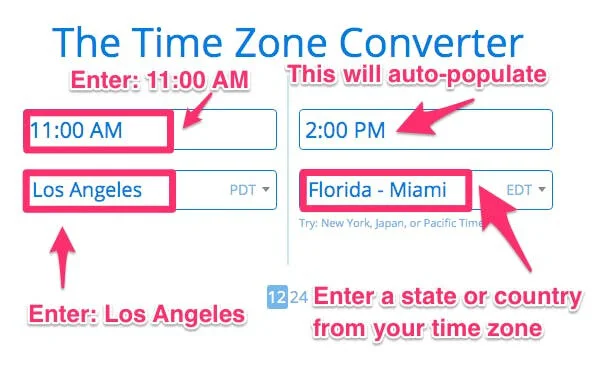
TIMEZONE CONVERTER
Click here to convert Pacific Time to your time zone.
Enter "11:00 AM" and "Los Angeles" in the fields to the left, then enter a city or country in your time zone in the lower right box.
In the upper right box, you will then see your corresponding local time that matches 11:00 am PT.
INSTRUCTIONS FOR AUDIO & VIDEO
1. When the Audio and/or Video are turned off, they will have a red diagonal line through them. When using a desktop or laptop computer, the Audio & Video icons are in the lower left corner of the Zoom window.

2. When the Audio and/or Video are turned on, there will be no red line.
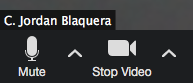
3. The Audio and Video functions work independently of each other so you can mute the audio while video is active or vice versa.
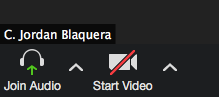
4. You can also mute/unmute audio and start/stop video during a meeting.
5. All ambient noise will be transmitted through your microphone. Therefore, please plan to be in a quiet location. If being in a completely quiet space isn’t possible, self-mute your microphone by clicking the microphone icon (mute/unmute). Just remember that if you choose to speak and have muted yourself, you will need to first click the microphone icon (mute/unmute) again to unmute yourself in order for everyone to hear you.
6. For tablets and desktop computes, in the upper right corner there you will see options to toggle between the following modes. Please explore each mode and choose the options that you prefer:
Gallery View / Speaker View
Speaker View show the active speakers. Therefore, if 2 people are in a conversation, the video will automatically switch to the active person who is speaking.
Gallery View shows multiple participants in a “Brady Bunch-style” layout. If there are many participants, there may be an arrow to scroll full many panels of multiple participants.
Full Screen / Exit Full Screen
If you want to concentrate solely on the artwork, Full Screen mode is recommended as it removes the video thumbnails of the other participants and focuses on the active speaker (often David Limrite) and/or the artwork that is being shared on the screen.
INSTRUCTIONS FOR JOINING VIA A SMART PHONE
1. Download the Zoom app to your phone. The Zoom icon looks like this:

2. Things look a bit different in the Zoom app as opposed to the desktop/laptop version. When you TAP the screen, you get a menu at the top and bottom of the phone screen.
At the top of the phone screen, you’ll see:
- An audio icon: I believe this will mute the sound of your phone and/or whoever is speaking during the Zoom meeting (but it won’t mute you). To be confirmed.
- A camera icon: Clicking this will reverse the camera from shooting you (like a selfie) to shooting whatever you point your camera at (like your cute pet or grand baby or garden)
- The word End: Clicking the word will give you the option of Leaving the Meeting or Ending the Meeting (if you were the person who initiated the meeting).
3. At the bottom of your phone screen, you will see the following menu. Remember, you activate this menu by tapping the screen. You will see:
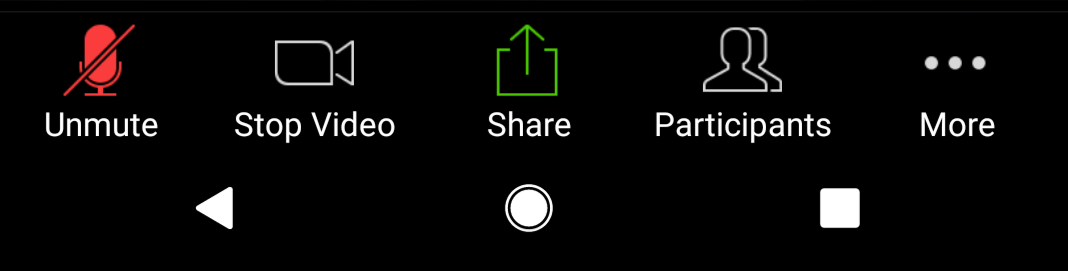
- A microphone icon; This mutes and unmutes YOUR microphone and whatever YOU are saying. This is different, I believe, than the audio icon at the top of the screen (see #7) which which mute the INCOMING sound from the meeting.
- A Video icon: This starts & stops your video from being seen by the others attending the Zoom meeting.
- Participants: Clicking this, I believe, will show you all of the people who are attending/on the meeting. When this isn’t selected, you will more than likely just see the “active’ person who is talking. In most cases, the default of Zoom, is to show onscreen the person who is actively talking.
4. This is a screenshot of the bottom of a phone screen. There are 2 dots above and to the right of my name. These are the 2 screens that you can swipe between (by swiping right and/or left).

DISCUSSION INSTRUCTIONS
These instructions are intended to facilitate communicating in an orderly fashion during the calls.
Participant & Chat Features
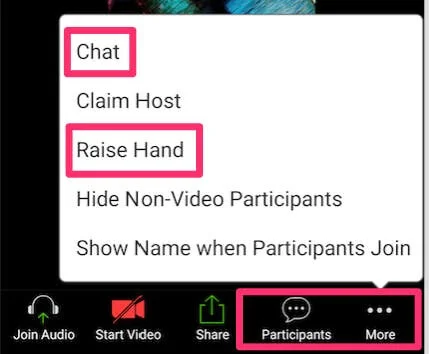
Once you are in the Zoom meeting, you will see two icons which are most often located at the bottom of your screen: Participant & Chat.

It also may look like this on a cell phone or tablet:
Using the Chat Feature During a Session
Clicking the Chat icon will opens its own panel. When you click both the Participants and Chat icons, the panels will usually stack on top of each other (but perhaps only on a desktop computer).
We want to focus the attention on the conversation between David and the artist he is speaking to. Therefore, we are not running a "chat roll" during the critique sessions. However, there may be more guided use of the Chat feature during the coaching sessions.
That said, if there was something that was said that you'd like clarification on or you want to communicate something to David or myself during the session, Jordan will be monitoring the Chat messages.
In the Chat panel, you will see a "To:" field.
Look for “Jordan Blaquera” or “***DAVID & JORDAN***”. You may send messages to the hosts only.
To: Jordan Blaquera or ***DAVID & JORDAN*** (Privately)
This way only David and/or Jordan will receive your message privately — which really means Jordan will be monitoring these notifications. David will not see these messages directly.
Have questions? Click here.